Difference between revisions of "Workflow Task Type: Generate PDF File"
From SmartWiki
(tTOC) |
|||
| Line 1: | Line 1: | ||
| + | __TOC__ | ||
Auto generation of a PDF that can be: | Auto generation of a PDF that can be: | ||
* E-mailed to the person(s) designated in the workflow step. | * E-mailed to the person(s) designated in the workflow step. | ||
| Line 9: | Line 10: | ||
[[Image:WorkflowTaskTypeSettings-GeneratePDF.png|link=|850px]] | [[Image:WorkflowTaskTypeSettings-GeneratePDF.png|link=|850px]] | ||
| + | |||
| + | ==Task Settings== | ||
| + | Request for Comment Tasks have the following settings: | ||
| + | * '''Name''' - Narrative name for the task. | ||
| + | * '''Task Number''' - A system generated number that determines the presentation order of the task in the workflow. This number can be changed to display the step in a different location. | ||
| + | * '''Description''' - Detailed description of the task ''(optional)''. | ||
| + | * '''Expire After''' - Intended duration of the workflow. | ||
| + | * '''Respondents''' - Indicates the number of respondents required for this approval. | ||
| + | * '''Allow Edit''' - Allows editing of the attached object. | ||
| + | |||
| + | {{WorkflowTaskTypeMessageTemplate}} | ||
==See Also== | ==See Also== | ||
Revision as of 13:39, 26 September 2013
Contents
Auto generation of a PDF that can be:
- E-mailed to the person(s) designated in the workflow step.
- Stored within a Multiple Files Custom Field.
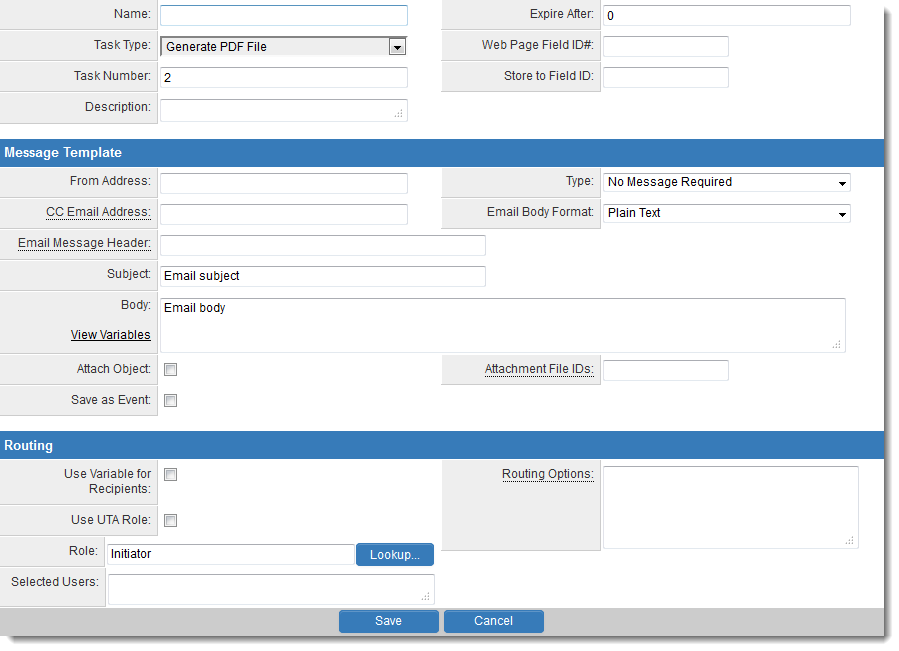
The PDF generated must be based upon a Web Page View Custom Field. You must specify the Custom Field ID of the Web Page View to be converted in the Web Page Field ID#: field on the Workflow Task settings.
If you wish to store the PDF, you can specify the field ID of the Multiple Files custom field in the Store to Field ID field on the Workflow Task settings.
- Note: the "Store To" Custom Field must be a Custom Field Type: Link – Multiple Files
Task Settings
Request for Comment Tasks have the following settings:
- Name - Narrative name for the task.
- Task Number - A system generated number that determines the presentation order of the task in the workflow. This number can be changed to display the step in a different location.
- Description - Detailed description of the task (optional).
- Expire After - Intended duration of the workflow.
- Respondents - Indicates the number of respondents required for this approval.
- Allow Edit - Allows editing of the attached object.
Message Template
- Message Type - Type of message – e-mail, instant message, both, or none required with this task. E-mail and instant messages can be created using variables that will create custom messages specific to instances of the workflow. Options are No Message Required (default), Quick Message, Email Only and Quick Message and Email.
- From Address - Email address sent from. This field accepts variables, so you can either hard-code a value (i.e. donotreply@mycompany.com) or use variable syntax (i.e., on a Level 1 Workflow, @owner.email@)
- CC Email Address - CC recipients address. (Separate multiple addresses with commas). Additional Email Syntax options can be used within this field.
- Email Body Format - Options are Plain Text or HTML.
- Email Message Header - The email header can be modified using the following syntax, with the arguments separated by semicolon:
- X-Priority={1,2,3,4,5}
- Priority={normal,urgent,non-urgent}
- Importance={high,normal,low}
- Sensitivity={personal,private,company,confidential}
- e.g. Priority=urgent;Importance=high
- Subject - Narrative subject line of the message.
- Body - Narrative body of the message.
- Attach Object - Attaches the details of the object to the message. In the case of a SmartSimple object, such as a company, person, or application, the textual details of the object will be added. If the object is a file, then the file will be attached to an e-mail message, but not an instant message.
- Attachment File IDs - Attach additional default files when triggered from a Smart Folder. See the Determining the File ID article for instructions.
- Save as Event - will create an e-mail activity. If its L1/L2 workflow, where the UTA L2/L3 Email Activity settings have been configured, then the it will be saved as L2/L3 event under the L1/L2 object. Otherwise it will be saved as user event against each recipient in the To field.

